Compatible software for humans and processors.

Japanese
eSOLEmbedded,Engineering and Enabling Solution

Home > Embedded Systems Solution > eBinder IDE > Overview > Development with eBinder

Embedded Products Solution Contact us

T-Kernel/µITRON-based system development suite

eBinder Development

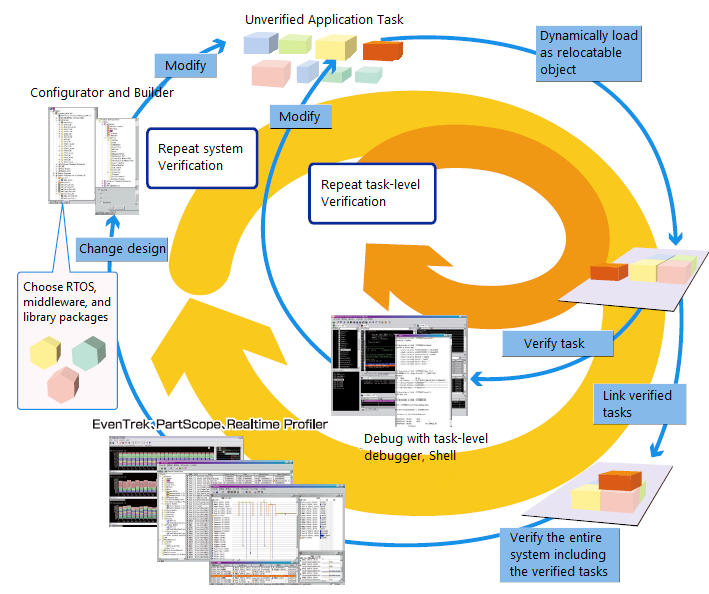
Iterative development model

Use eBinder's dynamic loading feature and task creation feature to verify each task independently. When one task is verified, integrate the task into the system. Repeat this cycle during development until all features are completed.

eBinder supports task-level debugging and process-based debugging with eT-Kernel/Extended. eBinder also supports development of eT-Kernel Multi-Core Edition-based software using a multi-core processor.

Iterative development model

Click image to enlarge

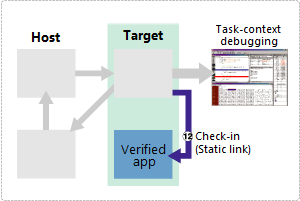
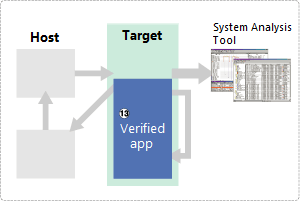
Development steps for iterative development

1

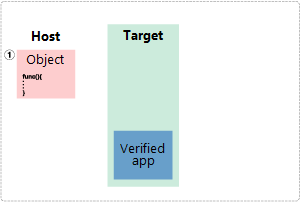
1. Modules that do not require debugging, such as the kernel, middleware, and verified user code, are built into the running image. Each new feature can be programmed as a task or module.

2

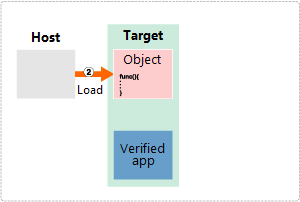
2. Load a compiled object (or objects) dynamically into the running target.

3

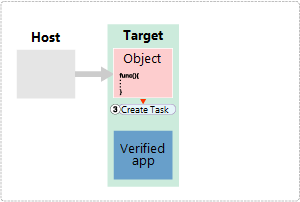
3. Dynamically create a new task utilizing the loaded object.

4

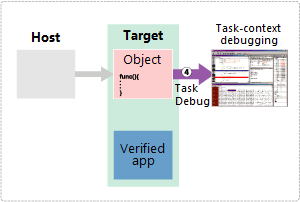
4. Attach the task-level debugger to the new task.

5

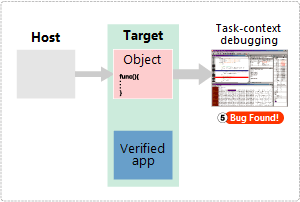
5. Find bugs using the task-level debugger.

6

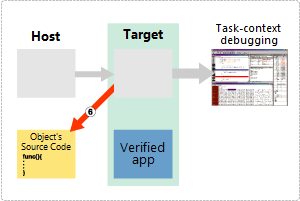
6. Fix the bugs.

7

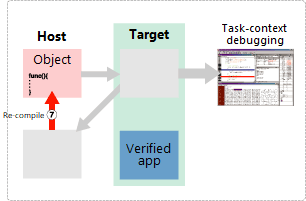
7. Recompile.

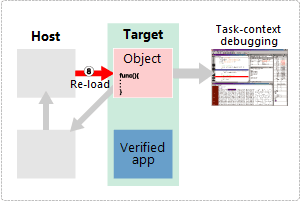
8

8. Reload the fixed object.

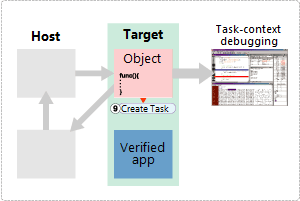
9

9. Dynamically create a task for the reloaded object.

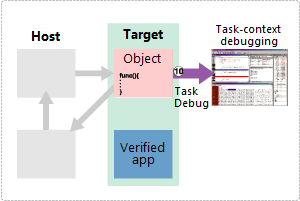
10

10. Attach the created task to the task-level debugger, and debug the task.

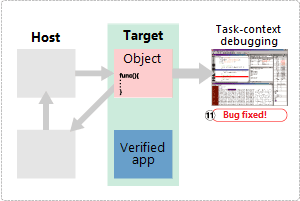
11

11. Use the task-level debugger to check if the bug is fixed.

12

12. Add the finished object to the system (static linking).

13

13. Once task verification is finished, verify the whole system using the system analysis tools (EvenTrek, PartScope, and Realtime Profiler).

Back to top

Development using eT-Kernel/Extended

eBinder supports development of processes with memory protection with eT-Kernel/Extended. You get the following features and benefits when you combine eBinder with eT-Kernel/Extended.


Program loading

eT-Kernel/Extended has its own loader to load programs dynamically. Or, alternatively, use the dynamic loading feature from eBinder.


Debug

Using eBinder's task-level debugger, debug individual tasks in an eT-Kernel/Extended process or debug an entire process (all tasks in a process). Debug all programs handled by eT-Kernel/Extended, including system programs, shared libraries, and DLLs without worrying about memory addresses.


System analysis

EvenTrek, PartScope, Realtime Profiler can be used with eT-Kernel/Extended. Using EvenTrek, get trace information for tasks in a process or a kernel application like a system program. PartScope provides information about processes and loaded modules such as a process's task information, and a process's OS resource information.


Platform development assistance

eBinder's platform packaging feature is very useful during development. For large-scale development with a large team, where eT-Kernel/Extended is especially suitable, you can easily create a platform package (PLP) to coordinate the team's efforts on a common platform.

Back to top

Development using a multicore processor and eT-Kernel Multi-Core Edition

eBinder supports software development using a multi-core processor and eT-Kernel Multi-Core Edition. You can work on iterative development by tasks, as if using a single processor, while using the system analysis tools to resolve complicated problems unique to the multi-core processor.


Task-level debugging

Debug by task using the task-level debugger. Open a window for each task to break an individual task without stopping the system, or step-execute a task to verify task intercommunication. A multi-core processor especially requires intertask synchronization and precise exclusion control. The task-level debugger helps solve such design problems.

Task-level debugger

Analysis among programs on different CPU cores and the entire system

Check the behavior of programs running on different CPU cores graphically with the system analysis tool, EvenTrek. Interprogram collaboration or operation of the entire system is shown from an overhead view. The following image is an EvenTrek screen showing the analysis result of a program operating on a multi-core processor with four CPU cores.

It shows a program running on four CPU cores with tasks and objects color-coded depending on the cores.

The next image is a chart focusing on the behaviors of tasks and objects running on two particular CPU cores. EvenTrek can filter specified CPU cores for clarified display, and easily identify a behavior by narrowing down on an analysis target.

The following is a chart focusing on behaviors of tasks and objects running on one particular CPU core. Debug in this display mode when analyzing a program that runs in single-processor mode (SPM). This display can be used when migrating software originally designed for a single processor.

Back to top

Contact us